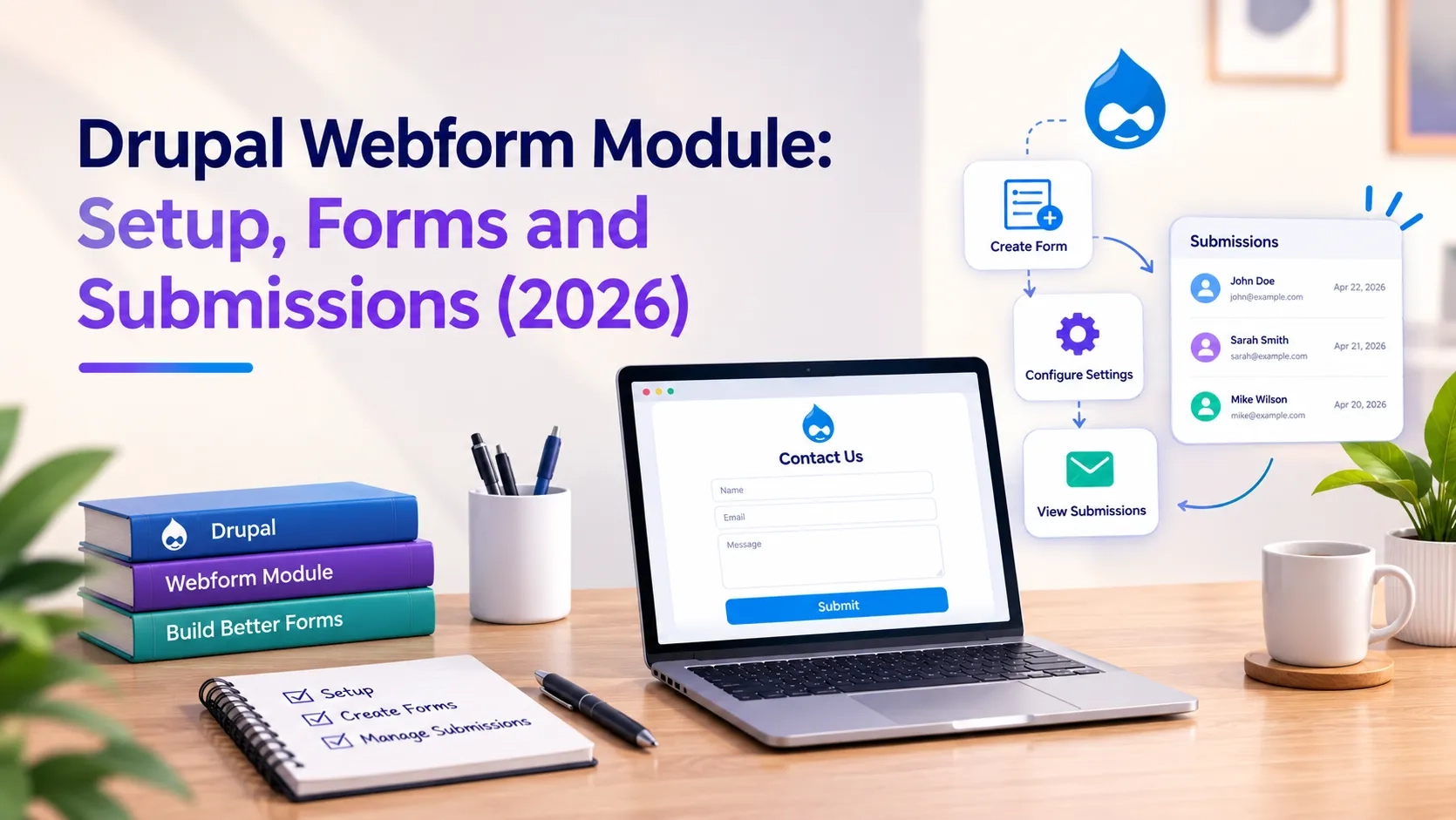
Drupal Webform Module: Setup, Forms and Submissions (2026)
 October 23, 2026
Drupal does not ship with a form builder. That is a deliberate decision — core handles the framework, and contributed modules handle specific functionality. For forms, the webform module is what the entire Drupal community has standardised on. Over one million active Drupal sites use it.
This guide covers how to install and configure the Drupal webform module, how to build forms from simple contact fields to multi-step conditional workflows, and how to manage submissions, exports and email notifications on Drupal 10 and 11.
1. What the Webform Module Is and What It Handles
The webform module is a contributed Drupal module maintained at drupal.org/project/webform. It is not part of Drupal core — you install it separately — but it is the de facto standard for form building in Drupal and has been since Drupal 7.
What it covers:
- Contact forms and enquiry forms
- Registration and booking forms
- Multi-step forms with progress indicators
- Surveys and questionnaires with scoring
- File upload forms with validation
- Conditional forms where fields show or hide based on user input
- Quote request and application forms
Submissions are stored in the Drupal database by default. They can be viewed in the admin, exported as CSV or XLSX, and forwarded to external systems through integrations.
Webform 6.3.0, released in 2026, is the first stable version with full Drupal 11 support. If your site is on Drupal 10, Drupal 10 reaches end of life on December 9, 2026 — the webform module supports the migration path to Drupal 11.
2. Installing the Drupal Webform Module
The webform module is installed through Composer, the same as every other contributed module on Drupal 9 and later. Manual file uploads are not recommended — they bypass Drupal's dependency management and can cause conflicts.
Installation:
- Run composer require drupal/webform in your project root. This downloads the module and resolves any library dependencies.
- Go to Extend (/admin/modules) in the Drupal admin. Search for "webform" in the module list.
- Enable the modules you need. At minimum: Webform and Webform UI. Enable Webform Node if you want to attach forms to content types as standalone pages.
- Click Install. Drupal will prompt you to confirm any dependencies it needs to enable first.
- Run drush updb to apply any database schema updates the module requires.
After installation, Webform appears under Structure > Webforms in the Drupal admin. That is where all form creation and management happens.
The webform module ships with several sub-modules:
- Webform UI — the visual form builder interface. Required for building forms through the admin. Without it, forms can only be created in code.
- Webform Node — creates a Webform content type so each form can have its own node, URL and page layout.
- Webform Access — adds granular access control for who can view, submit and manage specific forms.
- Webform Submission Log — tracks every action on every submission for audit purposes.
3. Building a Form with the Webform Module
Once the webform module is installed, go to Structure > Webforms and click Add Webform. Give the form a title — this becomes the admin label — and an internal machine name that Drupal uses as the form ID.
The form builder has two views: Elements and Source. The Elements view is the visual drag-and-drop interface. Source lets you edit the form configuration directly in YAML, which is useful when copying configurations between sites or managing complex forms in version control.
Adding fields:
- Click Add Element to open the element library. Webform includes over 40 element types.
- Text field, email, phone, number, date, textarea — standard input types
- Select list, checkboxes, radio buttons — for structured choices
- File upload — with configurable file type and size validation
- Entity reference — connects form fields to Drupal content like nodes or taxonomy terms
- Markup — lets you add instructional text or HTML between form fields
- Fieldset and Section — group related fields together visually
Each element has its own configuration: label, description, placeholder text, validation rules (required, min/max length, pattern matching), default value and conditional display logic.
The Settings tab controls the overall form behaviour: confirmation message or redirect URL after submission, save draft functionality, submission limits per user, and whether the form is open or closed.
4. Conditional Logic and Multi-Step Forms
Conditional logic and multi-step forms are where the webform module separates itself from basic contact form solutions. Both work entirely through the admin interface — no JavaScript, no custom code.
Conditional logic
Every element in a webform can have conditions attached to it — rules that control whether the element is visible, hidden, required, disabled or read-only based on the value of another field.
Example: show a "Company name" field only when the user selects "Business" in a customer type radio button. The condition is set on the Company name element: visible if customer_type equals "Business". Drupal evaluates this client-side in real time as the user fills the form.
Conditions can be stacked — an element can have multiple rules joined by AND or OR logic, covering complex branching flows without any JavaScript.
Multi-step forms
The webform module handles multi-step forms through Wizard pages. Add a Wizard Page element to the form to create a page break. Fields before the break appear on step one, fields after on step two, and so on.
Each wizard page can have its own title, and the module renders a progress indicator showing the user how many steps remain. Validation runs per page so users cannot advance without completing the current step.
Back navigation is optional. Drafts can be enabled so users can save their progress and return to complete the form later.
5. Managing Submissions: Storage, Export and Email
Every form submission is stored in the Drupal database and accessible at Structure > Webforms > [Form Name] > Results. The results view shows all submissions in a table with the submitted values, submission date and submitting user.
Exporting submissions
Submissions export to CSV or XLSX directly from the results admin. You can choose which fields to include, set a date range, and filter by submission status. For large submission sets, the export runs as a batch process and downloads automatically.
Email handlers
Email notifications are configured under Settings > Emails in the webform admin. Each email handler specifies:
- Who receives the email — a fixed address, a field value from the form (such as the submitter's email), or a role
- What the subject and body contain — including tokens that pull values from the submission
- Which submission fields are included in the email body
- Whether the email is a notification to admins or a confirmation to the submitter
You can add multiple email handlers to one form — for example, one to notify the site admin and one to send a confirmation to the person who submitted.
Submission management
Individual submissions can be viewed, edited, flagged and deleted from the admin. The webform module also supports custom submission states: pending, completed, draft, locked. These states let teams build basic approval workflows directly in Drupal without additional modules.
6. Embedding a Webform on a Page
The webform module gives three ways to place a form on a page. Which one fits depends on where the form belongs in the site structure.
Method 1: Webform block
Every webform is automatically available as a block. Go to Structure > Block Layout, find the region where you want the form to appear, and add the Webform block. Select which form to display. This places the form in a theme region, visible on whatever pages the block visibility rules specify.
This is the fastest way to put a contact form in a sidebar or footer. The block can be shown on specific pages, for specific user roles or across the entire site.
Method 2: Webform field on a content type
If Webform Node is enabled, you can add a Webform field to any content type under Structure > Content Types > [Type] > Manage Fields. Editors then attach a specific webform to individual nodes. This is useful when different pages need different forms — a service page with a quote form, an event page with a registration form.
Method 3: Shortcode in body field
The webform module supports a shortcode-style embed token: [webform:webform_id]. Paste this into any body field and the form renders inline. Works with WYSIWYG editors and does not require block configuration.
7. Integrations and Keeping the Webform Module Updated
Third-party integrations
The webform module integrates with external services through handler plugins. Handlers run after a form is submitted and can send the submission data to:
- CRM systems — HubSpot, Salesforce, Zoho CRM and others through community-maintained handler modules
- Email marketing platforms — Mailchimp, Campaign Monitor, ActiveCampaign
- Payment gateways — Stripe and PayPal through the Webform Stripe and Webform PayPal Commerce modules
- Google Sheets — through the Webform Google Sheets module for real-time submission logging
- Any REST API — through the Webform REST module or a custom handler
Each integration is a separate contributed module installed alongside webform. The core webform module does not bundle these — they are opt-in.
Keeping the module updated
The webform module is security-covered by the Drupal security team. Security advisories are released on Wednesdays when vulnerabilities are found. Any site running an older webform release with a known security issue should update before that vulnerability is exploited.
How to update the webform module:
- Run composer outdated drupal/webform to check the current and available versions
- Run composer update drupal/webform to pull the latest release
- Run drush updb to apply any database schema changes
- Run drush cr to clear caches
Check the release notes before updating on production. Major webform releases occasionally include breaking changes to configuration or submission handling that need attention before deploying.
Common Questions — Answered Directly
Is the Drupal webform module free?
Yes. The webform module is free and open source, maintained at drupal.org/project/webform. Webform 6.3.0 is the current stable release with full Drupal 11 support. There is no paid version.
Does Drupal have a built-in form builder?
Drupal core includes a Form API for developers building forms in code, but it does not include a visual admin interface for creating forms without code. The webform module provides that interface. It is the standard form builder for Drupal sites.
How do I install the Drupal webform module?
Run composer require drupal/webform in your project root, then go to Extend (/admin/modules) in the Drupal admin and enable Webform and Webform UI. Run drush updb after enabling. The form builder is then available at Structure > Webforms.
Can the webform module handle file uploads?
Yes. The webform module includes a file upload element with configurable allowed file types, maximum file size and upload destination. Uploaded files are stored in Drupal's managed file system and accessible through the submission admin.
Does the webform module work with Drupal 11?
Yes. Webform 6.3.0 is the first stable release with full Drupal 11 support, released in 2026. Earlier webform releases are not stable on Drupal 11. If you are migrating from Drupal 10 to 11, update the webform module to 6.3.0 or later before or during the migration.
How do I stop receiving form submission emails?
Go to Structure > Webforms > [Form Name] > Settings > Emails in the Drupal admin. Each email handler can be disabled individually without deleting it. Uncheck the handler or set its status to inactive to stop the emails while keeping the configuration.
Action Checklist
- Run composer require drupal/webform and enable Webform and Webform UI under Extend
- Enable Webform Node if forms need standalone pages or per-node form attachments
- Check your Drupal version — Drupal 10 reaches end of life December 9, 2026
- Update the webform module to 6.3.0 or later before migrating to Drupal 11
- Configure at least one email handler on every form that collects contact or registration data
- Test conditional logic and multi-step behaviour on a staging environment before going live
- Run composer outdated drupal/webform regularly and apply security releases immediately
Get a free Drupal audit → drupalify.com/free-audit

Dixit Patel
Web Developer & BloggerI write about web development, programming tips, and Drupal Commerce solutions. Follow me for tech tutorials and updates.



Struggling with
Let Us Audit Your Website for Free & Share Actionable Fixes